
01
Follow the proof
Keep the small but important details of a completed delivery in one practical place.
CaptureDelivery records, clearly kept
Delivered gives the day’s work a dependable home—from the proof you capture to the records you keep close.
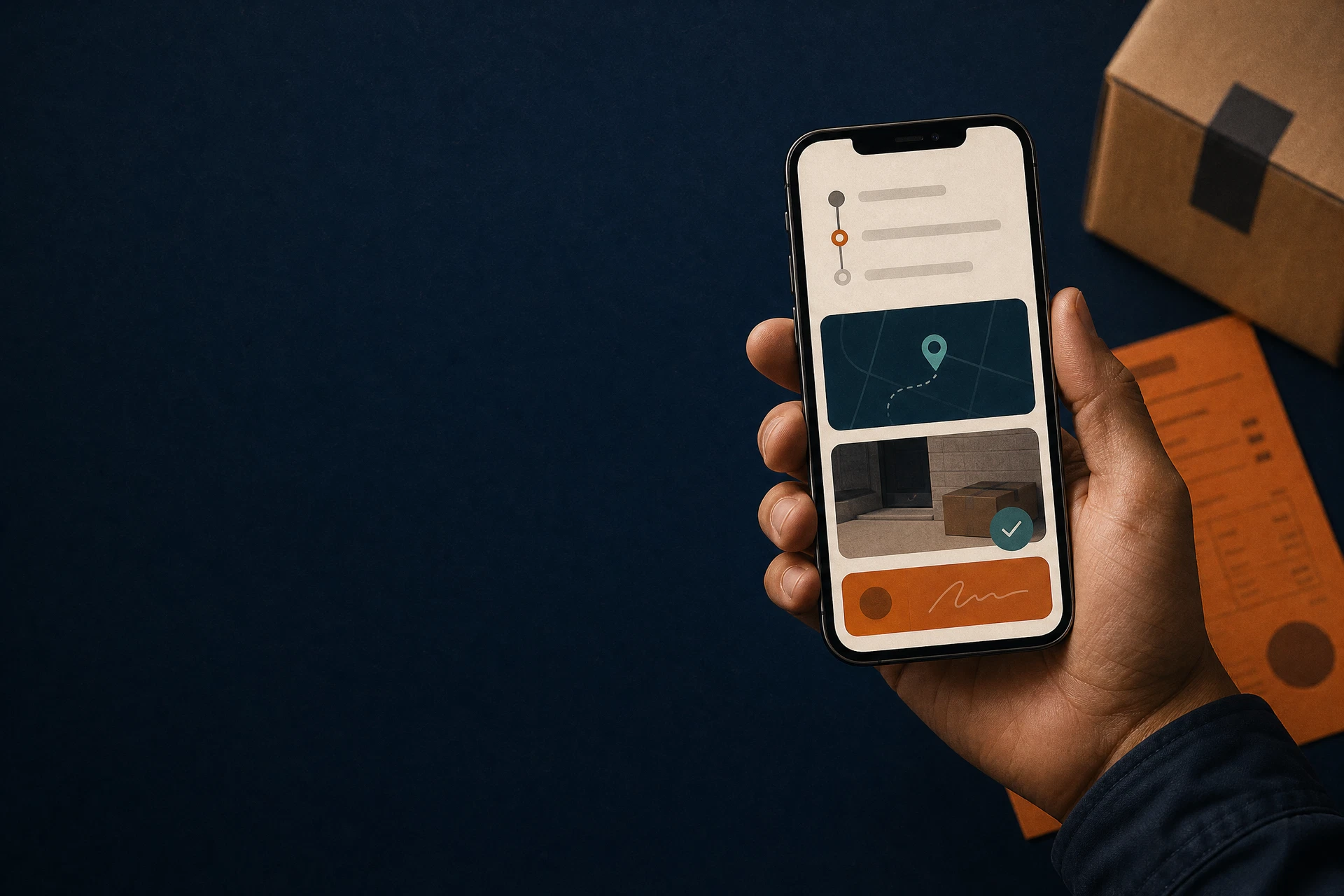
The Delivered way
Built for the everyday details: a completed delivery, a clear handover, and the confidence to find the information you need.
Keep the small but important details of a completed delivery in one practical place.
CaptureBring order to the day’s delivery records with a view made for getting on with it.
OrganiseCreate a manual backup when it makes sense for your business, then keep that file private.
ProtectChoose your device
Your delivery records deserve a safe, deliberate home. Choose the iPhone or Android guide, then keep the saved file where you can find it.
Need help troubleshooting?Create a backup
In Delivered, open Business → Backup History / Restore Backup → Create Backup.
Choose Save to Files.
In Files, create a new iCloud Drive folder named Delivered Backups.
Save the backup in that folder.
Restore a backup
In Delivered, choose Restore Backup.
In Files, browse to iCloud Drive → Delivered Backups and select the backup.
Follow Delivered’s restore options to complete the process.
Create a backup
In Delivered-Courier App, open Business → Backup History / Restore Backup → Create Backup.
When the Android file picker opens, choose where to save the backup.
Create or select a private folder named Delivered Backups. For on-device storage, use Documents → Delivered Backups.
Tap Save or Complete to keep the backup in that folder.
Restore a backup
In Delivered-Courier App, choose Restore Backup.
In the Android file picker, open the same Delivered Backups folder—on-device storage is usually Documents → Delivered Backups.
Select the backup you want, then follow Delivered-Courier App’s restore options.
A little more help